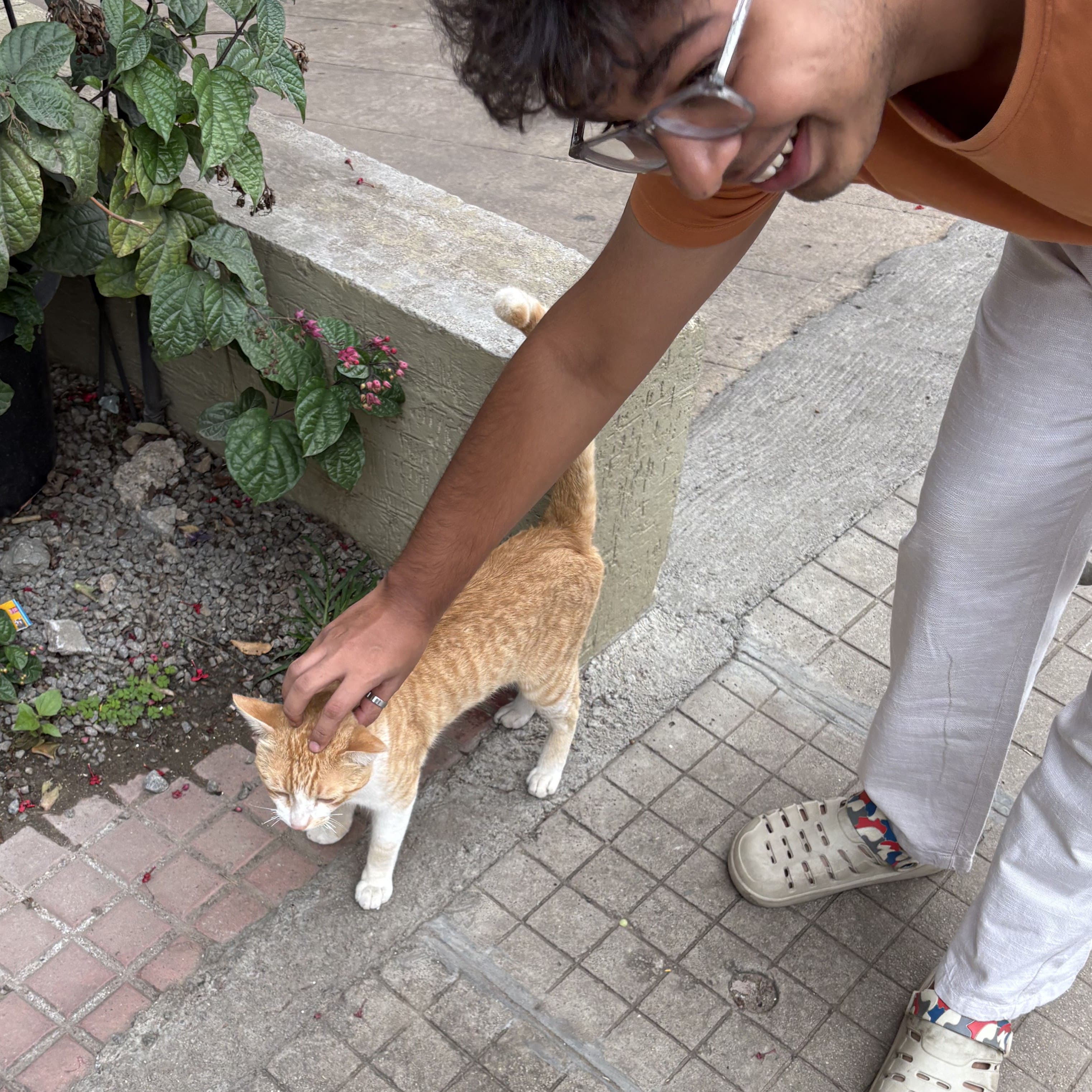
Aryan Kushwaha
22 • Software Engineer • ENGLISH / हिंदी
I’m a final-year Computer Science undergrad based in Delhi NCR, India.
I love making deterministic machines predictebly undeterministic.
What I work with:
- Backend
- Linux
- AWS, GCP
- Machine Learning
rocket_launch What I’m Up To
-
Backend & AI Intern at SuperDash
Bangalore, Karnataka · July 2025 – Present
Streamlining communications with AI. -
Blogger & Backend Developer at Let’s Code
Remote, Part Time · April 2025 – Present
Writing backend logic and blogs when I’m not busy breaking my Arch install.
work Experiences so far
-
GenAI Intern at Weya.ai
Noida, Uttar Pradesh · Nov 2024 – Jan 2025- Worked on FastAPI based backend to handle realtime voice calls with AI agents.
- Added multiple integrations such as Calendar, Meet, WhatsApp, Twilio.
- Developed a microservice to convert S3 documents into embeddings.
- Tested and fine-tuned LLMs like they were fresh recipes.
-
Summer Research Intern at NIT Jalandhar
May 2024 – July 2024- Worked on a research paper to predict waterborne diseases using 20+ real-time water quality parameters.
- Achieved around 90% accuracy — not bad for a student and a laptop!
school Extra-Curricular
-
AIML Club · Google Developer Groups OnCampus
April 2022 – Present- Mentored students in ML, AI, and avoiding Stack Overflow copy-paste errors.
- Led workshops on Git, GitHub, and open-source.
- Dabbled in projects spanning finance, NLP
search Explore my blogs and projects below
Latest Blog Posts
Audio Formats and Voice Agents
July 26, 2025A little backstory So for those of you who don’t know, I have been working as a Backend and AI engineer at Superdash for two weeks at the time I am writing this. And so far, I have worked on voice based AI agents and made them sound more natural. And, I’m sharing whatever I have scratched my head for. You can use this as a extra reading material while building anything related to voice based communication over the internet.
SSH for Noobs
May 19, 2025Many of you must have worked with AWS or GCP at some point, and even if you were scared of the terminals, you might have been forced to use it. And you also must have accessed the terminal of your service from your local terminal. But wait, how is that possible? How can you access the console of another system from your own? The answer: SSH So, what SSH actually is, and how can you use it effectively without just copy-pasting commands from the internet? Let’s explore that in this blog post.
Why you should be a part of open source?
May 4, 2025As a computer science student, you’ve likely encountered the terms “open source software” or “free software” while working on projects. But what exactly does open source mean, and why should it matter to you? Let’s explore that in this post. What Does Open Source Stand For? Technically, open source software (OSS) refers to software whose source code is publicly available, allowing anyone to view, modify, and redistribute it freely, often under specific open source licenses . However, open source is more than just a technical standard; it’s a philosophy. It benefits a wide range of people, not just programmers – even if you’ve never written a line of code, you likely benefit from OSS every day.
MCP: Giving LLMs Hands (and Tools)
April 16, 2025Why the hype? We’ve all faced the task of writing professional emails and sending personalized versions to multiple recipients. While ChatGPT can help draft the email, it would be even more efficient if the entire process, including sending personalized emails to each recipient, could be automated. Imagine your LLM handling the entire task for you – this is where MCP comes in. For example, suppose you’re a marketing manager launching a new product. You need to email different customer segments with tailored messages highlighting the product features most relevant to them. Or, imagine you’re a recruiter sending personalized follow-up emails to candidates after an interview, referencing specific points discussed. MCP enables these kinds of automated, personalized communications, saving you time and improving engagement.
Building OCR in Plasma's Spectacle using C++
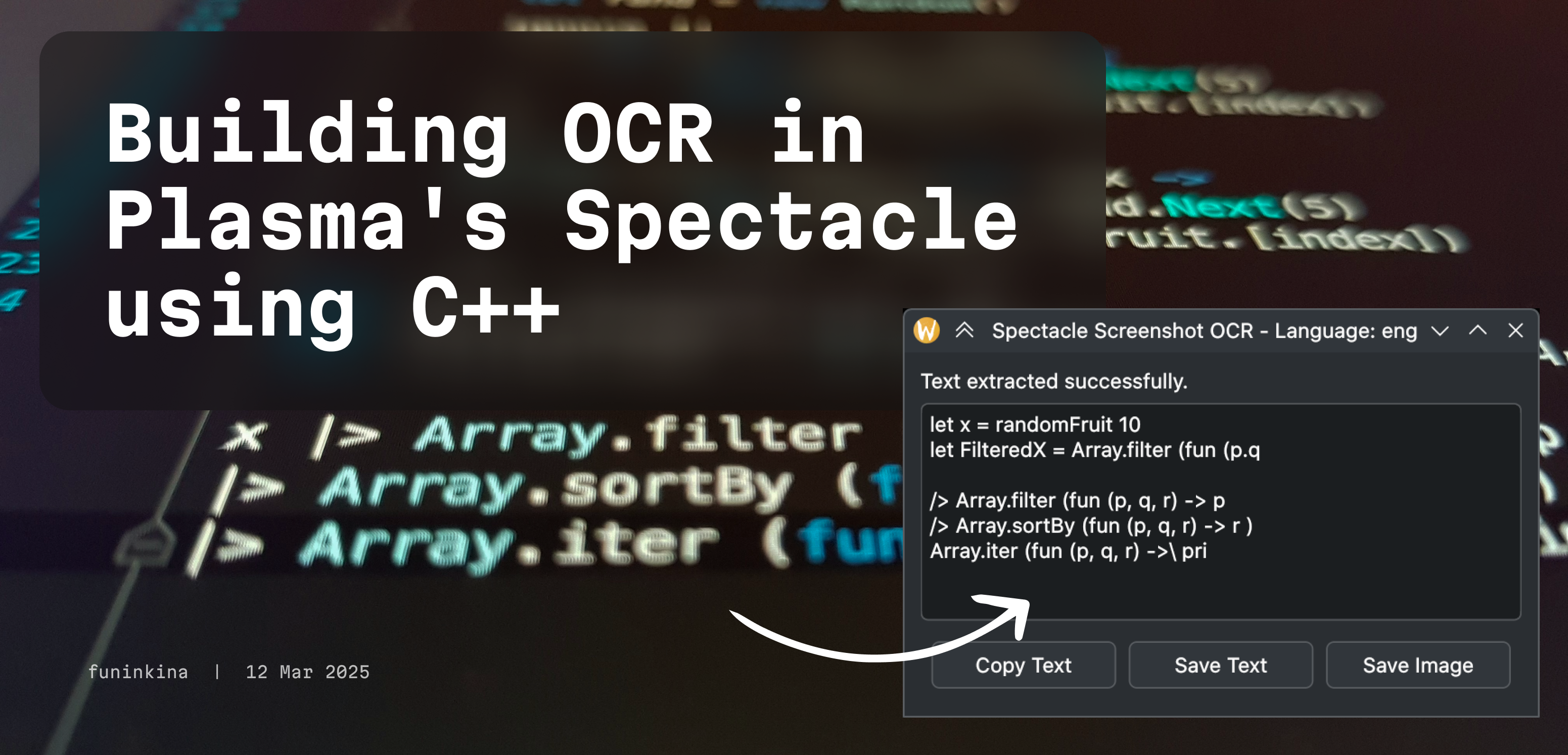
March 12, 2025🔍 The Why? A while ago I made a python script that achieved the same goal but in GNOME desktop environment. You can read more about it here . That also uses Tesseract to extract the text and displays a GTK window to copy or save. But recently, I switched to KDE Plasma and I wanted to have the same functionality in Spectacle, the default screenshot tool in KDE Plasma. So I decided to write one for KDE Plasma too.
Building & Learning
Weekly Commits
Weekly Commits GNOME Extension — Visualize Your GitHub Activity Right from the Top Bar Why I Built This As developers, we spend hours coding, committing, and pushing changes — but rarely do we take a moment to reflect on our consistency. While GitHub contribution graphs are nice, they live on a webpage, buried behind a few clicks. I wanted something more immediate and minimal. I wanted to see my GitHub commit activity at a glance — right from my GNOME desktop environment. So I built Weekly Commits, a GNOME Shell extension that brings your GitHub commit stats to your system’s top bar.
RSync Backup Script
This is a simple, customizable shell script designed to help users back up specific parts of their home directory to an external drive. It leverages the power of the rsync command for efficient file synchronization. GitHub Repository: funinkina/rsync-backup-script Since it is just a script, you can just copy from here #!/bin/bash # List the FOLDER NAMES within your home directory you want to back up. # Do NOT include the full path, just the name relative to $HOME. # Example: SOURCE_DIRS=("Documents" "Pictures" "Projects" ".config/some_app") SOURCE_DIRS=( "Academics" "assets" "Codes" "Documents" "dotfiles" "Pictures" "Hackathons" "Notes" "Projects" ".mozilla" ".ssh" # Add more directories here... # ".config" # Be careful with large hidden dirs, they might contain caches too # ".local/share/some_app" # Example of nested path ) # --- !!! IMPORTANT: External Disk Path !!! --- # Example: DEST_BASE_DIR="/media/your_username/MyExternalUSB/Backups" # Ensure this directory exists and you have write permissions. DEST_BASE_DIR="/mnt" # <<< --- CHANGE THIS --- # --- !!! IMPORTANT: Destination Subfolder Name !!! --- # Define the name of the FOLDER *INSIDE* DEST_BASE_DIR where this specific backup will go. # Leave empty to use the default (current date and time). # Example 1 (Fixed Name): DEST_SUBFOLDER_NAME="MyHomeBackup" # Example 2 (Date Based): DEST_SUBFOLDER_NAME="backup_$(date +%Y-%m-%d)" # Default (Date & Time): _DEFAULT_SUBFOLDER_NAME="backup_$(date +%Y-%m-%d_%H-%M-%S)" DEST_SUBFOLDER_NAME="archlinux_backup" # <<< --- SET YOUR DESIRED FOLDER NAME HERE, OR LEAVE EMPTY FOR DEFAULT # List of directory NAMES to exclude. These will be excluded wherever they appear. EXCLUDE_DIRS=( "node_modules" "venv" ".venv" "env" "__pycache__" "Cache" "cache" ".cache" "build" "dist" ".gradle" "target" ".DS_Store" "Thumbs.db" ".Trash" "*-cache" ".npm" ".yarn" ) if [[ -z "$DEST_SUBFOLDER_NAME" ]]; then DEST_SUBFOLDER_NAME="$_DEFAULT_SUBFOLDER_NAME" echo "INFO: Using default destination subfolder name: $DEST_SUBFOLDER_NAME" fi FULL_DEST_PATH="$DEST_BASE_DIR/$DEST_SUBFOLDER_NAME" if [[ "$DEST_BASE_DIR" == "/path/to/your/external/disk/backup_area" ]] || [[ -z "$DEST_BASE_DIR" ]]; then echo "ERROR: Please configure the 'DEST_BASE_DIR' variable in this script." exit 1 fi if [ ! -d "$DEST_BASE_DIR" ]; then echo "ERROR: Base destination directory '$DEST_BASE_DIR' not found." echo "Please ensure the external disk is mounted and the path is correct." exit 1 fi if [ ! -w "$DEST_BASE_DIR" ]; then echo "ERROR: Base destination directory '$DEST_BASE_DIR' is not writable." echo "Please check permissions." exit 1 fi RSYNC_EXCLUDES=() for dir in "${EXCLUDE_DIRS[@]}"; do RSYNC_EXCLUDES+=(--exclude="$dir") done RSYNC_OPTS=(-av --progress --delete "${RSYNC_EXCLUDES[@]}") # RSYNC_OPTS=(-av --progress "${RSYNC_EXCLUDES[@]}") # Default: Safer without --delete echo "Attempting to create destination folder: $FULL_DEST_PATH" mkdir -p "$FULL_DEST_PATH" if [ $? -ne 0 ]; then echo "ERROR: Failed to create destination folder '$FULL_DEST_PATH'." echo "Please check permissions and path validity." exit 1 fi echo "Destination folder ready." echo "===========================================" echo "Starting Backup" echo "Source Base: $HOME" echo "Destination: $FULL_DEST_PATH" echo "Excluded Directories: ${EXCLUDE_DIRS[*]}" echo "===========================================" echo errors=0 processed_count=0 DEST_PARENT_FOR_RSYNC="$FULL_DEST_PATH/" for src_dir in "${SOURCE_DIRS[@]}"; do SOURCE_PATH="$HOME/$src_dir" echo "--- Processing: '$src_dir' ---" if [ ! -e "$SOURCE_PATH" ]; then echo "WARNING: Source '$SOURCE_PATH' does not exist. Skipping." echo "--------------------------------------" continue fi echo "Running: rsync ${RSYNC_OPTS[*]} \"$SOURCE_PATH\" \"$DEST_PARENT_FOR_RSYNC\"" rsync "${RSYNC_OPTS[@]}" "$SOURCE_PATH" "$DEST_PARENT_FOR_RSYNC" rsync_exit_status=$? if [ $rsync_exit_status -ne 0 ]; then echo "ERROR: rsync failed for '$SOURCE_PATH' with exit code $rsync_exit_status." errors=$((errors + 1)) else echo "Successfully processed '$src_dir'." processed_count=$((processed_count + 1)) fi echo "--------------------------------------" echo done echo "===========================================" echo "Backup Finished" if [ $errors -gt 0 ]; then echo "WARNING: Encountered $errors errors during backup." echo "Processed $processed_count directories successfully before errors or completion." echo "Backup located at: $FULL_DEST_PATH" exit 1 else echo "All specified source directories ($processed_count) processed successfully." echo "Backup complete in: $FULL_DEST_PATH" exit 0 fi echo "===========================================" How it is built The project is implemented as a standard shell script. It utilizes the command-line utility rsync as its core engine for performing the backup operations, known for its efficiency in handling file transfers and synchronizations. The script is designed to be highly customizable by directly editing its contents, facilitated by being “well commented” to guide users in modifying parameters like source folders, excluded paths, and the backup destination.

Query MD
QueryMD is an AI-powered application designed to help users interact with and query their personal markdown notes. It allows you to ask questions and search your notes using natural language, leveraging the power of large language models. GitHub Repository: funinkina/QueryMD Main usage of this? If you are like me, who writes all their notes using markdown that is locally stored, this tool will be super handy. I use it frequently to manage and search some obscure reference I wrote somewhere.
Bloop
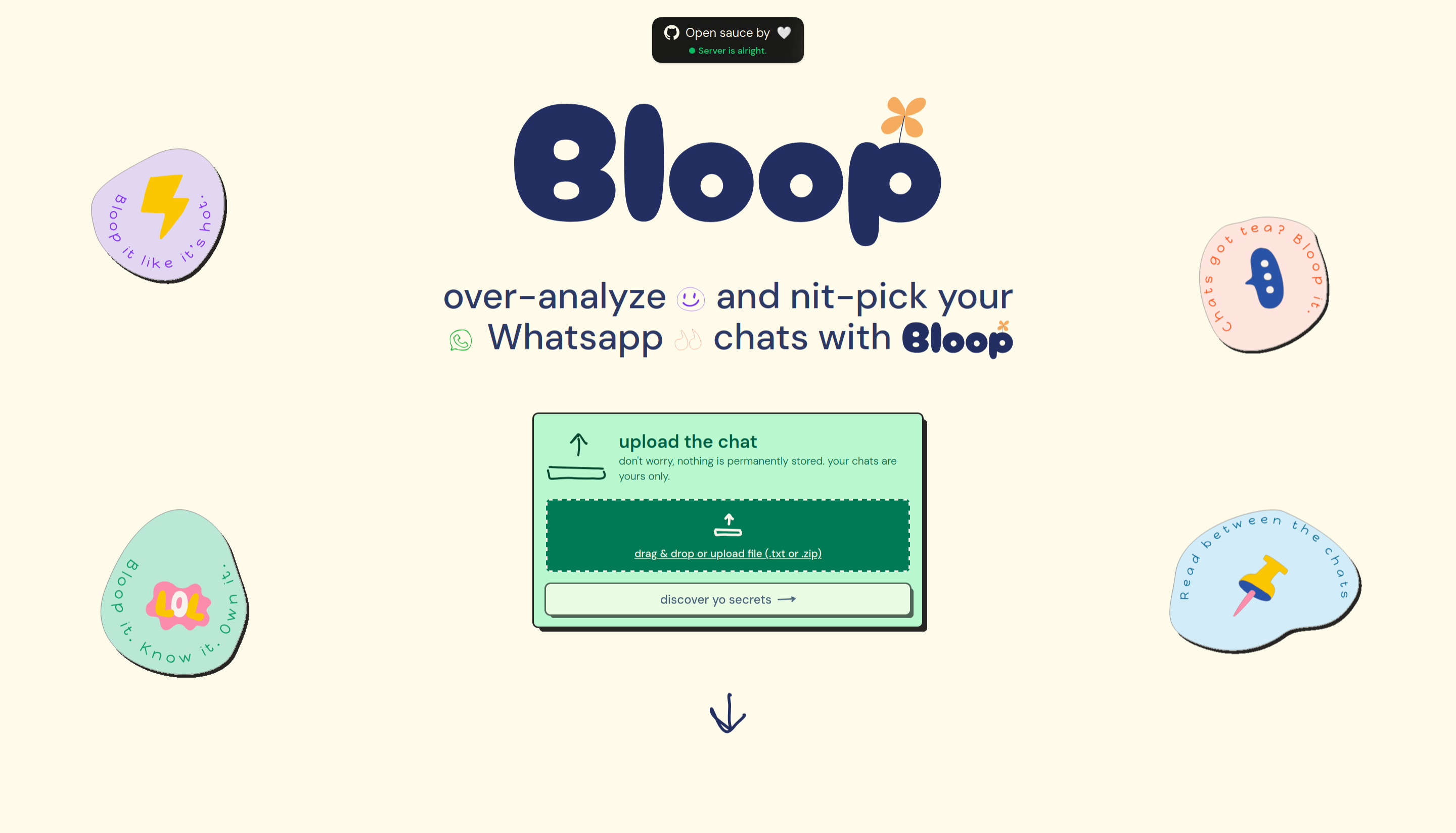
Bloop is a web application designed to analyze exported WhatsApp chat files, offering insights into conversation dynamics, popular words, user activity, and more. It provides a comprehensive look into your chat history. Try it live at: bloopit.vercel.app The GitHub Repos: Backend Frontend How it is built The backend of Bloop is built with GoLang using the Gin framework. GoLang was chosen for its speed and lightweight nature. Gin is utilized for its high performance and efficiency in handling a large number of requests, making the server suitable for potentially high-traffic scenarios. The frontend is developed using Next.js, a popular React framework, chosen for its capabilities in building fast, scalable, and SEO-friendly web applications.

Spectacle Ocr Screenshot
Spectacle OCR Screenshot is a straightforward Qt application designed for the KDE desktop environment. It integrates seamlessly with KDE’s native Spectacle screenshot tool to enable users to quickly extract text and decode QR codes directly from captured screen regions. GitHub Repository: funinkina/spectacle-ocr-screenshot Why I made this? Oftentimes I needed to copy a error or debug message from the screen but it won’t be in a nice text box, so i decided to make this simple utility to do that for me. Basically the same tool as funinkina/Gnome-OCR-Screenshot but for KDE desktop.

Gnome OCR Screenshot
GNOME Screenshot OCR is a simple, native tool for the GNOME desktop environment that allows users to instantly extract text or scan QR codes directly from a selected area of their screen via a screenshot. GitHub Repository: funinkina/Gnome-OCR-Screenshot Why I made this? Oftentimes I needed to copy a error or debug message from the screen but it won’t be in a nice text box, so i decided to make this simple utility to do that for me.
DEM Super Resolution
Project Description This project explores upscaling of Digital Elevation Model (DEM) data using a state-of-the-art super-resolution model. The model used is from the 2023 paper, “A Global-Information-Constrained Deep Learning Network for Digital Elevation Model Super-Resolution.”. For more details and original implementation see the paper . The article demonstrated the model’s ability in enhancing the resolution of DEM data beyond traditional bicubic interpolation methods, which are often considered the baseline to beat for super-resolution models on DEM data.

Manjaro Minimal Bootsplash
Manjaro Minimal Bootsplash is a custom theme for Plymouth, the graphical boot splash system used in many Linux distributions, specifically tailored for Manjaro Linux. It aims to provide a cleaner, more minimal look during the system boot process. GitHub Repository: funinkina/manjaro-minimal-bootsplash How it is built This project is essentially a Plymouth theme package. It includes shell scripts (bootsplash-minimal.sh, bootsplash-packer) used to generate necessary files (like an STL model, which is part of the bootsplash mechanism) and assist in packaging. The theme itself defines how visual elements like the logo and spinner are displayed during boot. It’s designed to be built and installed as an Arch Linux package using makepkg, integrating into Manjaro’s package management system. The visual assets, particularly the spinner, were based on graphics from Preloaders.net and further modified. Installation involves modifying system configuration files like /etc/mkinitcpio.conf and /etc/default/grub to activate the theme.